PHASE 3: REGISTER TEAM MEMBERS
Thank you for completing your Phase 2 registration. The next step is Phase 3 where you will be able to upload your team member’s information and their ID photos. Rather than have you register team members one by one on a multipage form the website, we have designed a process where you can upload all team members attending an event at one time. Please Note: If you have more than 1 team participating at an event, you need to go through these 3 steps for each team separately. Please pay close attention to the details.
The 3 step process is as follows:
Step 1: Individual Team Member Information
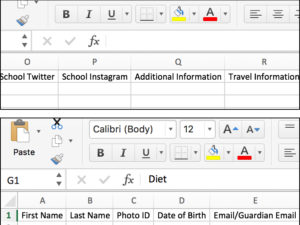
- Your team member’s information must be entered in the csv file that you can get by clicking on: PHASE 3 TEMPLATE.
- VERY IMPORTANT –
- PLEASE DO NOT CHANGE REMOVE OR ADD ANY COLUMNS
- PLEASE SAVE THE FILE IN THE SAME REGULAR CSV FORMAT THAT YOU GET IN THE DOWNLOAD. PLEASE DO NOT SAVE AS A CSV UTF8 – THIS FORMAT IS NOT SUPPORTED.
- Enter all your delegation team members (1 per row) for the event and all their information in the columns provided. All columns with a ‘*’ next to the title are required and must be entered.
- Save the file save in the same downloaded regular comma separated values (csv) format once all attendees are entered on the csv file.
- The spelling of the following are very important. Please make sure to copy the spelling exactly as it is outlined in the csv title or from the information below:
Diet
Gluten
Halal
Kosher
Nut Allergy
Vegan
Other
Role
Choose from:
Athlete
Coach
Head of Delegation
Official/Referee/Umpire/-
Judge
Executive Committee
Officials
Observer
Guest
Volunteer
Role
Additional Adult
Additional Adults -VIP
Additional Adults -Journalist
Additional Adults -Press
Additional Adults -Security
Additional Adults -Transport
Additional Adults – Medical/Doctor
Transportation
Choose from:
Plane
Train
Boat
Bus
Car
Other
Step 2: Registering your team members
When your csv file for a team is completed and you are ready to upload it (and you have not made any changes to the columns or column headers, and have saved the file as a regular csv file, you are ready to register your team(s) at Phase 3.2: Team Member Registration.
When you go to Phase 3.2: Team Member Registration:
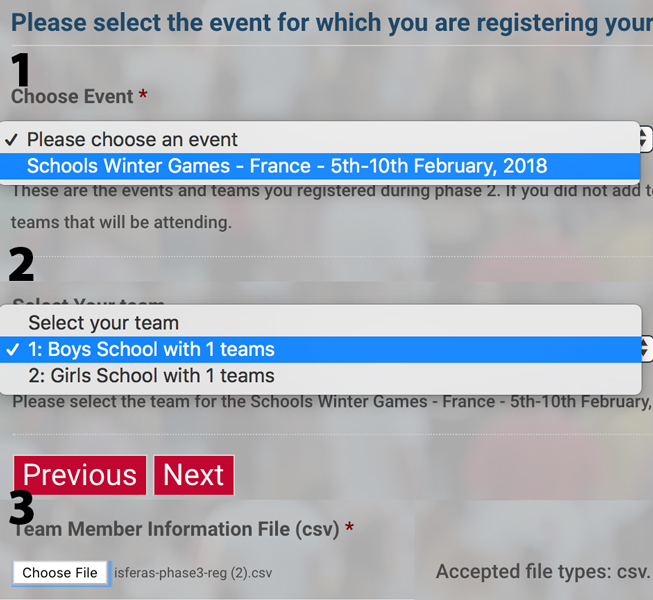
- You will be presented with a dropdown list of the events that you selected in Phase 2 Registration. This is very important as you must have an event selected for your teams to be available for individual member registration on the next page.
- If the events are not there –
- Check that you are logged in with the same Delegate ID/email that you used for Phase 2 registration
- If they are still not there, go back to My Registration: Phase 1&2 and make sure they are selected and the fields are added for # of athletes, adults etc.
- Select the Event and click next.
- On the next page will be the teams that you registered in Phase 2 for the event.
- If the teams are not listed in the drop down:
- Check that you are logged in with the same Delegate ID/email that you used for Phase 2 registration
- If they are still not there, go back to My Registration: Phase 1&2 and make sure they are selected and the fields are added for # of athletes, adults etc.
- Select the team that matches the csv file you are going to upload. Make sure the file is saved as a plain csv file please. Click on choose file and upload the file.
- Thats it – All the team members are uploaded. If you filled in all of the fields, you have one task left.
- After we parse the file and create the individual profiles, the travel information and the hotel and team information, you need to upload the ID photos.
Step 3: Individual Team Member ID Photos (jpg only)
- Each team member must have an ID photo for the Accreditation Cards.
- Once you have uploaded your csv file with your team member information, we will parse the file and create individual profiles for each member. This may take a few hours for a large team upload.
- Once the individual account profiles are created, please return to Country Registration Report Phase 3 to upload the ID photos that will be used for the accreditation cards.
- You can also edit a team member’s registration while you are here
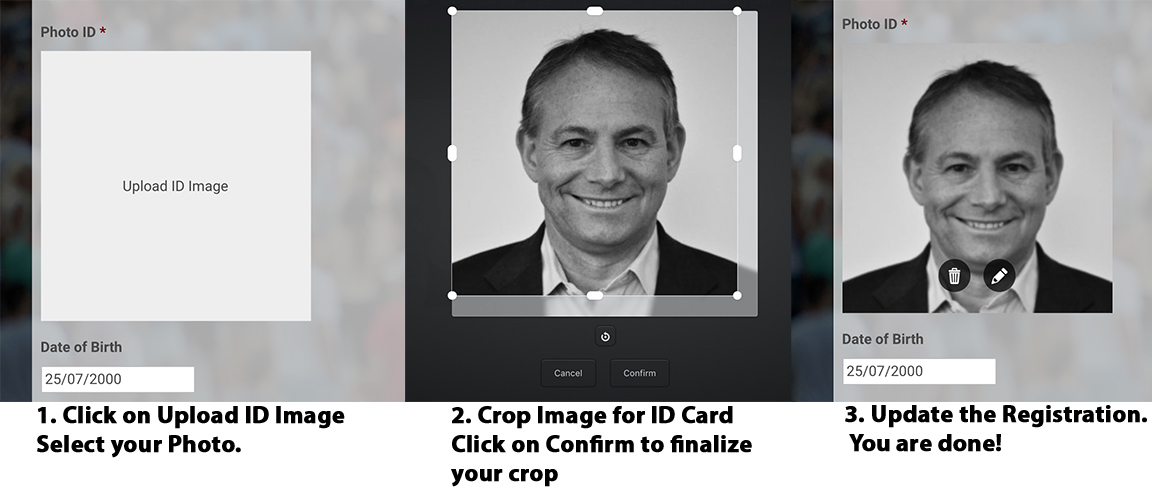
- Once you edit the person’s profile, scroll down to the upload ID Image field and its as easy as 1,2 3! Here’s a little cheat sheet: